







Duplex printing test
A two-page double sided print test: print front and back, hold the sheet to a light, and check that the marks line up.
Ink use ~ 0% of a page
Free PDF. No sign-up. Ready to print. 2 pages: print two-sided.
What each part checks
Two pages. Six useful checks.
Front page
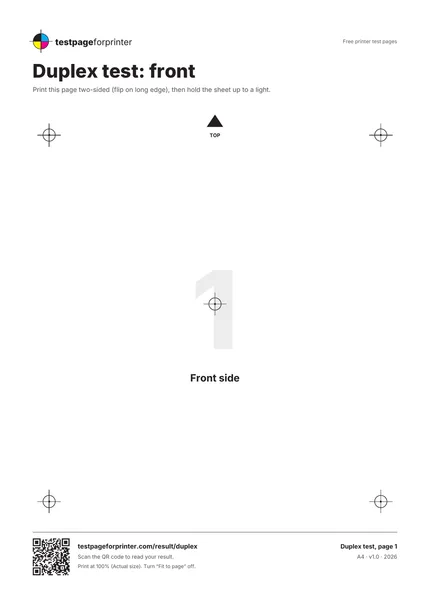
Page 1 is labeled Duplex test: front, with a large number 1 and the words Front side.
Back page
Page 2 is labeled Duplex test: back, with a large number 2 and the words Back side.
Registration marks
Five identical marks in the same places on both pages: four near the corners and one at the center. Each has a tiny dot at its middle.
TOP arrow
An arrow and the word TOP at the top edge, so you can tell whether the back is upside down.
Hold-to-light check
Held up to a light, the back marks should sit exactly behind the front marks.
Footer
A QR code, short URL, a reminder to print at 100%, paper size and version on both pages.
How to read your print
- Marks line up.
- Hold the sheet to a window. Each front mark should sit directly over its back mark.
- Consistent offset.
- If all marks are shifted the same way, the duplexer is feeding the sheet slightly off.
- Correct orientation.
- The TOP arrow on the back should sit at the same edge as on the front when you flip the sheet.
- Wrong flip.
- If the back is upside down, the flip setting is wrong. Switch between long edge and short edge.
Print settings that matter
- Print at actual size (100%)Choose Actual size or 100% and turn off Fit to page. Menu names vary by program.
- Choose two-sided, flip on long edgeSelect Two-sided or Duplex, then Flip on long edge for portrait pages. If the back is upside down, try short edge instead.
- Use one sheet of plain paperPrint pages 1 and 2 on one sheet, so the front and back are the same piece of paper.
Related sheets


What this duplex printing test is
This is a two-page PDF made for a duplex printing test, also called a double sided print test. Page 1 is the front, page 2 is the back. Both carry the same registration marks in the same positions, plus a TOP arrow. If you print them on one sheet, the marks on the back should sit directly behind the marks on the front.
When to use it
Use it when two-sided prints come out upside down, when the back of a page looks shifted compared with the front, after a paper jam in the duplex unit, or when you set up automatic duplex for the first time. It also helps you check whether the issue lies in the printer or in a setting, because the flip choice causes most upside-down backs.
How to print it
- Download the Letter or A4 PDF that matches your paper. See A4 vs Letter if you are unsure.
- Open it in a PDF viewer and choose Actual size or 100%.
- In the print dialog, choose Two-sided and Flip on long edge, with both pages selected.
- Print one sheet on plain paper. If your printer has no automatic duplex, print page 1, reload the sheet as your printer manual describes, then print page 2.
- Hold the sheet up to a window or lamp and compare the marks.
The built-in two-sided options are in different places on Windows and Mac. Menu names vary by program and printer.
What good looks like
Held to the light, every back mark sits over its front mark. The TOP arrows are at the same edge on both sides when you flip the sheet along its long edge. Nothing is clipped on either side.
What bad looks like
If the back is upside down, change Flip on long edge to short edge, or the other way around. If all marks are shifted the same distance in the same direction, the paper is feeding slightly off on the second pass, which is common and usually small. If margins are clipped differently on the two sides, compare with the alignment test page. See misaligned print for more causes.
Try the test with the paper you actually use for two-sided jobs. Thin paper can show through when you hold it to a light, which makes marks harder to compare, and heavier paper can feed differently through the duplex path. Note the paper you used so you can repeat the test later.
What to do next
Scan the QR code, or open Read your result, to match your print to a cause. Check that the paper is loaded straight and that the paper size in the dialog matches the paper. If a jam happened in the duplex path, read paper jam. If the print is also too small, see prints too small, and confirm scale with the scale check tool. This sheet page shows an ink estimate for both pages.
A small, consistent offset between front and back is normal on many printers. A large one, or one that changes between sheets, is worth a closer look.