






Printer resolution test page
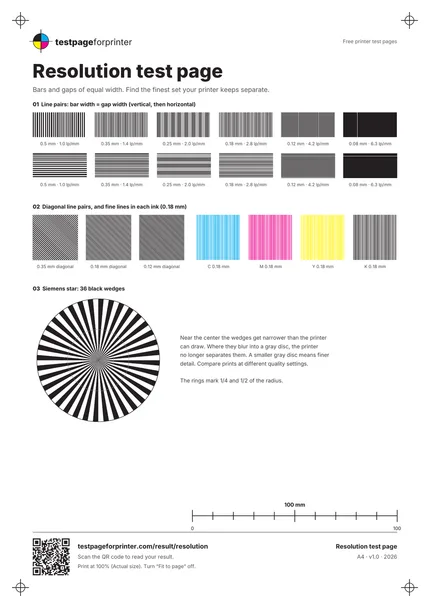
A free resolution test page with line pairs from 0.5 mm down to 0.08 mm, fine diagonals and a Siemens star, so you can see how much fine detail your printer keeps at each quality setting.
Opens the PDF. Use Print or Share from there.
Download PDFPrint one copy first. This PDF does not measure ink or toner use.
Free PDF. No sign-up. Ready to print.
In the print dialog, choose Actual size or 100% and turn off Fit to page.In the print screen, choose Actual size or 100% (not Fit).

What each part checks
Line pairs, vertical and horizontal
Black bars and white gaps of equal width: 0.5, 0.35, 0.25, 0.18, 0.12 and 0.08 mm. Each set is labeled with its line pairs per millimetre (lp/mm).
Diagonal line pairs
The same idea at 45 degrees, at 0.35, 0.18 and 0.12 mm. Diagonals show stair-stepping that straight lines hide.
Fine lines in each ink
Cyan, magenta, yellow and black line pairs at 0.18 mm, to compare how sharp each ink prints.
A Siemens star
36 black wedges that narrow toward the center. Where they blur into a gray disc, the printer can no longer separate them.
A 100 mm scale bar
Check the page printed at actual size, or the line widths will not be true.
Mostly white layout
The sheet leaves much of the paper white. Print one copy in each mode before deciding whether to repeat the test.
How to read your print
- Finest separate set.
- Find the finest line pair set where you can still see separate bars. Sets beyond that merge into solid black or gray.
- Vertical versus horizontal.
- If vertical sets stay sharp but horizontal ones merge sooner, or the other way round, detail differs between the head direction and the paper feed direction.
- The gray disc.
- In the Siemens star, a smaller gray disc in the center means finer detail. Compare its size between prints.
- Each ink.
- If one color’s lines blur or break while the others stay sharp, print a nozzle check for that ink.
Keep the guide handy
The QR code on the printed sheet opens this page on your phone.
Print settings that matter
Print settings that matter
- Print once at each quality settingStandard first, then High or Best. Compare the finest separate set and the star’s gray disc between prints.
- Use the same paper each timePaper changes how far ink spreads, so keep it the same when you compare settings. Then try photo or coated paper.
- Print at actual size (100%)Choose Actual size or 100% and turn off Fit to page. Check the 100 mm bar with a ruler.
Related sheets


Read the full guide
What this resolution test page is
This page prints line pairs: black bars and white gaps of the same width, from 0.5 mm down to 0.08 mm, in vertical, horizontal and diagonal sets, plus fine lines in each ink and a Siemens star. A printer that keeps fine detail prints the narrow sets as separate bars. When the bars get narrower than the printer can draw, they merge into solid black or gray.
What it does and does not tell you
The page shows how much fine detail you get from your printer, paper and settings together. It does not measure the printer’s DPI. The DPI in a print dialog is a setting for how the printer places dots, and the same printer can hold more or less detail depending on the paper, the ink and the quality mode. Use this sheet to compare settings and papers on your own printer, not to check a spec sheet.
On screen, the finest sets may look solid black, because a monitor cannot show lines that thin. They are separate in the PDF. Print the page to see them.
How to read it
Look at section 1 in good light, with a magnifier if you have one. Note the finest set where the bars are still separate, for vertical and for horizontal lines. Then look at the Siemens star: the gray disc in the middle is where the wedges are too narrow to print apart. Print again at a higher quality setting and compare both.
Check the 100 mm scale bar first. If it is short, use the fixes for prints that come out too small so the printed line widths match the test.
What bad looks like
If even the 0.5 mm set looks blurred or smeared, the problem is not fine detail: check the paper type setting and the paper, and see smudges. White lines running across the sets point to blocked nozzles; see streaks or lines. Doubled or shadowed bars point to alignment; see how to align a print head. For small text, use the text clarity test page.
Good questions
Does this page measure my printer’s DPI?
What does lp/mm mean?
Why do the finest sets look solid on my screen?
Which quality setting should I compare?
Is this the same as the text clarity page?
Also useful
- Text clarity test page
- Fix smudges
- Fix streaks or lines
- Align a print head
- Solid black test page
- Inkjet printer test page
- Laser printer test page
- All PDF downloads
- Color test page
- Black & white test page
- CMYK test page
- Alignment & margins
- Nozzle check
- Blank page test
- Scale check sheet
- Duplex front/back test
- Grayscale test page
- Ink saver test page
- Borderless test page
- Printer ruler test page