






Blank page print test
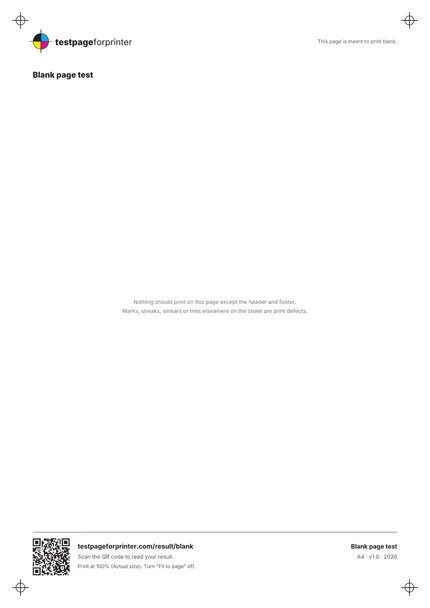
A page that should print blank, so any mark, streak or tint you see is a defect worth looking at.
What each part checks
One sheet. Six useful checks.
- 1
Header
A small brand mark and title at the top, so you know which page you printed and which way is up.
- 2
Nearly empty body
The middle of the page is meant to stay white, apart from two short lines of text in light gray.
- 3
Corner marks
Small registration marks near each corner, which show the page edges and orientation.
- 4
Footer
A rule line, a QR code and the short URL, a reminder to print at 100%, plus paper size and version.
- 5
Large white areas
The blank space between header and footer is where stray marks, tints or lines show up.
- 6
Edge-to-edge check
Look at the borders and corners as well as the middle. Smudges often collect along edges and in one stripe.
How to read your print
- Clean white.
- Apart from the header, footer and corner marks, the page should be plain paper.
- Straight lines.
- Thin horizontal or vertical lines across the page point to the head, a roller or the drum.
- Tint or gray cast.
- A light overall tint can mean toner issues, a dirty fuser or a misreading paper type.
- Repeating marks.
- Marks that repeat at regular spacing down the page usually come from a roller or drum.
Print settings that matter
- 1Print at actual size (100%)Choose Actual size or 100% and turn off Fit to page. Menu names vary by program.
- 2Use clean, dry plain paperFresh paper from a sealed pack removes the paper as a possible cause of marks.
- 3Check Draft or Economy modesDraft and toner-save modes can leave a faint print. Use Normal quality for this test.
- More printing tips
Related sheets

What this blank page print test is
This is the simplest test on the site. The sheet prints only a header, a footer, small corner marks and two short lines of gray text. Everything else is meant to stay white. Because there is almost nothing to print, anything extra stands out: stripes, specks, smears, tints or ghost images. That is what a blank page print test is for.
When to use it
Use it when pages come out with random marks, when you see lines on documents that are not in the file, when a laser printer leaves toner specks, or when you want to confirm that a printer outputs a clean page before printing something important. It is also a way to separate a printer problem from a file problem. If a page that should be blank is clean here but your document has marks, the file is the cause. If you get the marks here too, the printer is.
How to print it
- Choose the Letter or A4 PDF that matches your paper. See A4 vs Letter if you are unsure.
- Open it and choose Actual size or 100%.
- Print one copy on plain paper at Normal quality.
- Hold the page under a bright, even light and tilt it slightly. Faint marks show better at an angle.
Step-by-step instructions for your system are in the Windows and Mac guides.
What good looks like
You see the header, footer and corner marks, and the two small lines of gray text near the middle. Everything else is clean white paper, with no tint, lines, specks or smears.
What bad looks like
Horizontal or vertical lines suggest streaks or lines. Dark or greasy marks that rub off are covered in smudges. If the printer pulls a sheet and prints nothing at all, even the header, read blank pages. A light overall tint suggests the same page-wide problem shown under faded print.
Keep in mind that paper itself can cause marks. Creases, dust, and paper that has absorbed moisture can all leave marks that look like printer faults. If you see something odd, print a second sheet from a different pack before you decide the printer is at fault.
What to do next
Scan the QR code, or open Read your result, to match your print to a cause. For an inkjet that shows marks, run the nozzle check to see whether a nozzle is leaking or blocked. For a laser, compare with the black and white test page, where solid blocks show toner and drum problems more clearly. The sheet page shows an ink estimate, and because this page is nearly empty, it uses very little.
If a clean test page prints but your documents do not, see test page prints but documents do not.