





Troubleshooting
Printer printing doubled or misaligned text?
Shifted margins, ghosted text or colors that do not line up have different causes.
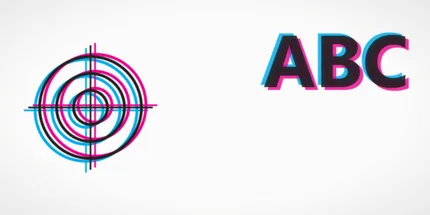

What does the misalignment look like?
1 of 2Likely cause
Likely cause: print head alignment is off, or on a laser, the fuser or paper is causing ghosting.
- 1Print the alignment test page and look at the center target and grid.
- 2Run your printer’s print head alignment routine from its maintenance menu or driver.
- 3Reprint the alignment page and compare.
Likely cause
Likely cause: color registration is off, so the inks are landing in slightly different places.
- 1Print the CMYK test page and look at the registration targets.
- 2Run the printer’s alignment or calibration routine.
- 3If it persists, check for a loose or damaged cartridge.
Likely cause
Likely cause: paper not loaded square, the wrong paper size setting, or a scaling option changing the layout.
- 1Reload paper squarely and adjust the guides snugly.
- 2Check paper size and scaling settings, such as Fit to page or Actual size.
- 3Print the alignment test page and check the margin frames.
Most likely causes
- 1
Print head or color registration is out of alignment
If the inks are not landing exactly where expected, text looks doubled and colors show fringes. Many inkjets have an alignment routine for this.
- 2
Paper not loaded squarely or guides too loose
Crooked paper makes the whole print slanted or shifted. Loose guides let the paper wander as it feeds.
- 3
Wrong paper size or scaling setting
Choosing Letter when A4 is loaded, or the reverse, shifts content and cuts off edges. Scaling options can shrink or move the print area.
- 4
Worn feed rollers or ghosting (laser)
A worn pickup roller can cause paper to skew. Ghosting, a faint repeat of the image, on a laser can come from the drum, toner or fuser.
What to try, in order
- 1Print the alignment test pageIt has a 10 mm grid, diagonals and a center target. Check whether lines are straight, square and evenly spaced.
- 2Reload paper and check settingsLoad fresh paper squarely with the guides snug. Confirm the paper size in the print dialog matches the paper loaded, and that scaling is set sensibly.
- 3Run the printer’s alignment routineUse the print head alignment option in the maintenance menu or driver. Details vary by printer, so follow your manufacturer’s official instructions.
- 4Reprint and comparePrint the alignment test page again. If it is better, you are done. If doubled text or tilt remains, note the pattern and try a different paper.

Alignment routines use ink and paper. Run one, check the result, and avoid repeating it more than twice in a session.
When to stop and replace
If alignment routines do not improve the result, paper feeds crooked even when loaded squarely, or text stays doubled on every page, a worn feed roller, loose carriage part or failing print head is possible. These are rarely worth fixing on a low-cost printer, so compare the repair cost with a replacement.
Inkjet or laser?
Inkjet printers
Most inkjets have a print head alignment routine in the maintenance menu or driver. Doubled text and colored edges often improve after running it once.
Print the alignment test pageLaser printers
Lasers do not have print head alignment, so misalignment is usually paper feed, paper size settings, or a worn roller. Ghosting is a separate drum or fuser topic.
Print the alignment test pageMisaligned printing shows up in a few different ways: doubled text, colored fringes around black text, a tilted page, or margins that cut off content. Each points to a different cause, so start by seeing exactly what you have.
Print a sheet with a grid
The alignment test page has a 10 mm grid, diagonals, a center target with concentric circles, four 10 by 10 mm squares and nested margin frames. Straight lines tell you the paper feeds well. Squares that look rectangular, or a grid that tilts, point to feed or scaling. Doubled lines or colored edges on the center target point to head or color alignment.
For color-specific issues, the CMYK test page has registration targets where all four inks overlap. If they do not line up, the inks are landing in slightly different places.
Check paper and settings first
Many alignment problems are not alignment problems at all. Paper loaded at an angle, guides left loose, or the wrong paper size in the dialog will all shift the print. Check A4 vs Letter if your content is cut off at the edges. If everything is the wrong size, see prints too small, and use the scale check to measure.
Running an alignment routine
Inkjet printers usually have a print head alignment option in the maintenance menu or driver. The steps differ by model, so follow your manufacturer’s official instructions. Our Epson, Canon, HP and Brother pages link to official support.
If it keeps happening
Doubled print that returns right after alignment, or paper that skews even when loaded squarely, can mean a worn part. Smeared rather than doubled print is covered in smudges, and stripes in banding.
