




Printer nozzle check
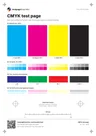
A printer nozzle check pattern for inkjets: every line should be continuous, and gaps point to a blocked nozzle.


Print it
Start with a fresh test sheet.
Print at 100% scale. Do not fit to page.
Ink use ~ 3% of a page


What each part checks
One sheet. Six useful checks.
- 1
Cyan band
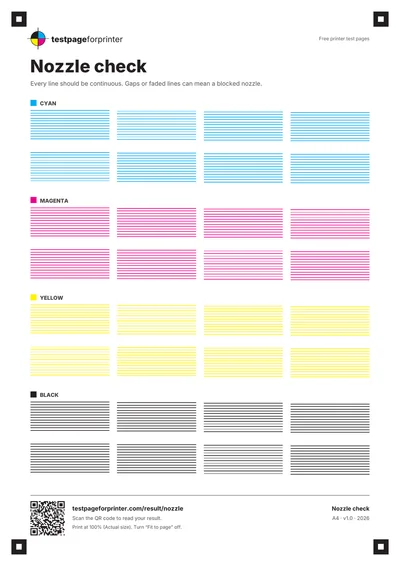
Two rows of four staggered line blocks in cyan, 12 lines of 0.3 mm in each block.
- 2
Magenta band
The same pattern in magenta. A gap here, but not in cyan, points to magenta only.
- 3
Yellow band
The same pattern in yellow. Yellow is the faintest ink, so look closely in good light.
- 4
Black band
The same pattern in black. Gaps here are easy to see and often show up first in everyday documents.
- 5
Staggered line blocks
Each block is shifted slightly from its neighbor, so a missing line is easier to spot against a clean neighbor.
- 6
Corner markers
Four dark corner squares with a white center. They are used by the optional camera tool and can be ignored for a visual check.
How to read your print
- Continuous lines.
- Every line should run unbroken across its block. That is a healthy nozzle.
- Gaps.
- A short break in a line, or a missing line, can mean a partly or fully blocked nozzle.
- Faded lines.
- Lines that are lighter than their neighbors suggest a partial clog.
- Same spot, same color.
- Gaps that line up in the same place in one ink point to the same nozzles in that ink.
Print settings that matter
- 1Print at actual size (100%)Choose Actual size or 100% and turn off Fit to page. Scaling can blur or merge fine lines. Menu names vary by program.
- 2Use plain paper and standard qualityPlain paper makes gaps easier to see than glossy paper. Use Normal or Standard so the test reflects everyday printing.
- 3Print in color, not grayscaleTurn off Grayscale or Black ink only, or the cyan, magenta and yellow bands will not print as intended.
- More printing tips
Run a nozzle check
Nozzle check from the printer
Use plain paper. Menu names differ by model.
- 1Open MaintenanceSelect Maintenance (or Setup, then Maintenance on some models), then Nozzle Check or Print Head Nozzle Check.
- 2Print the patternPress the start button.
- 3Compare the linesComplete lines with no gaps are healthy. Gaps or faint lines point to a partly blocked nozzle.
Head cleaning
Epson documents cleaning as a repeat-and-recheck routine.
- 1Start cleaningIf the pattern has gaps, choose Clean the print head or Head Cleaning and follow the screen prompts.
- 2Check againPrint the nozzle check again after each cleaning.
- 3Limit repeatsEpson’s guidance for some models says to wait several hours, with the printer left on, if gaps remain after several cleanings. The exact count and wait time vary by model, so follow your model’s official page.
Epson menus differ between EcoTank, WorkForce, Expression and large-format models. Use these steps as a guide and confirm the exact wording for your model on Epson’s support site.
Nozzle check pattern
Based on Canon’s support instructions for the printer driver.
- 1Print the patternIn Printer Properties, click the Maintenance tab, click Nozzle Check, then Print Check Pattern.
- 2Read the patternComplete lines are healthy. Canon describes missing lines or white stripes as a sign the print head needs cleaning.
Print head cleaning
- 1Open CleaningIf the pattern shows problems, use the Cleaning button that Canon’s nozzle check screen provides.
- 2Print the pattern againCheck the result. If lines are still missing, follow the further steps in your model’s official guide rather than repeating blindly.
Canon’s support instructions are written per model, and the older examples we could confirm use a driver Maintenance tab. Newer models may differ, so confirm on Canon’s support site for your exact model.
Print quality report
HP calls its quality check a Print Quality Diagnostic or Print Quality Report. Wording varies by model.
- 1Print the reportUse the printer panel or HP Smart to print the report on plain white paper.
- 2Check the patternsHP describes two test patterns. If lines in the first are not straight and connected, align the printhead. If color blocks in the second show white lines or are faded or missing, clean the printhead.
Align and clean the printhead
- 1AlignOn many HP models, Printer Maintenance then Align the Printhead is the path. Confirm on your model’s page.
- 2CleanOn many HP models, Printer Maintenance then Clean the Printhead is the path. HP says to follow the front-panel prompts and run further cleaning levels only if needed.
- 3Print the report againCheck the result before you clean again.
HP makes inkjet, laser and cartridge-free models, and tool names differ across them. The steps above are typical for HP inkjets. Laser printers rarely have printhead tools, so check your model’s support page.
Print Quality Check (inkjet)
Based on Brother’s guide for a touchscreen inkjet model. Other models may use different steps.
- 1Print the check sheetGo to Settings, Maintenance, Improve Print Quality, Check Print Quality, then Start to print the Print Quality Check Sheet.
- 2Examine the color blocksLook at the four color blocks. If lines are clear and sharp, you are done.
- 3If lines are missing or fadedFollow the screen prompts to indicate the problem pattern and start cleaning.
- 4Check againThe printer offers to reprint the sheet after cleaning so you can compare.
Care notes from Brother
- 1Do not touch the print headBrother warns that touching the print head can cause permanent damage and may void its warranty.
- 2Stop repeated cleaningIf repeated cleaning does not help, Brother’s guide says to contact customer service. Follow the exact limits in your model’s guide.
Brother laser printers have no print head to clean, and their panel test print methods are model-specific. Use these steps as typical examples and confirm on Brother’s support site for your model.
Good pattern
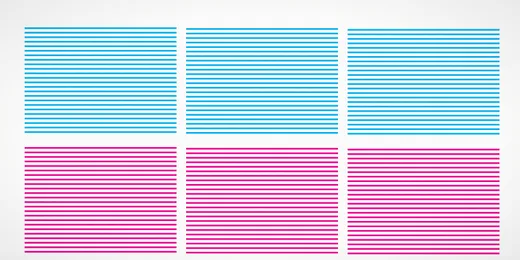 Simulated
Clean, continuous lines in every block.
Related sheets

What this nozzle check is
An inkjet prints through tiny nozzles. When one dries out or clogs, it stops laying down ink and leaves a thin gap in the print. This sheet is a nozzle check pattern: for each of cyan, magenta, yellow and black, it prints blocks of fine lines. A healthy nozzle makes a continuous line. A blocked one leaves a gap or a faded stripe.
When to use it
Use it when prints show horizontal white lines, when one color looks weak, after a long break from printing, or when ink has just been replaced. It works as a clogged nozzle test because it checks each ink on its own. It is for inkjet printers. Laser printers do not have nozzles.
How to print it
- Download the Letter or A4 PDF that matches your paper. See A4 vs Letter.
- Open it and choose Actual size or 100%.
- Print in color on plain paper at Normal quality.
- Look at the page in good light, from about arm’s length and then up close.
If you are unsure where print settings are, see the Windows and Mac guides.
The printer’s own nozzle check
Many printers also have a built-in nozzle check, started from the printer or the driver. The steps differ by brand, so the Epson, Canon, HP and Brother steps appear in tabs further down this page. Use them to run the maker’s own pattern or a cleaning cycle. We do not repeat them here. See also Epson, Canon, HP and Brother for the longer guides.
What good looks like
Every line in every block is continuous and the same strength as its neighbors. Cyan, magenta, yellow and black all look complete.
What bad looks like
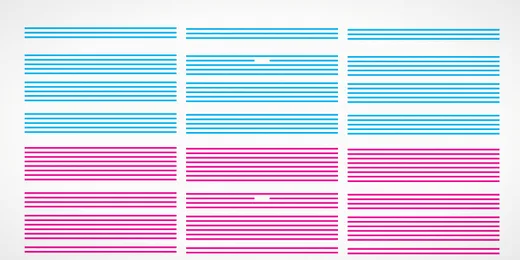
Gaps, missing lines or faded lines in one band mean that ink has a blocked or weak nozzle. Several colors failing at once can mean old or low ink, or a printer that has sat unused. For the matching symptoms, see streaks or lines and missing color. Our guide to reading a nozzle check shows how to tell a light clog from a failing head.
What to do next
Open Read your result, or scan the QR code on the sheet, to match what you see. If there are gaps, run one cleaning cycle from your printer or driver, then print the sheet again. Cleaning cycles use ink, so stop after two. If the gaps are still there, wait a few hours and try once more, check ink levels, and see the faded print page. The sheet page shows an ink estimate for the test itself. For a quick scan with your phone, there is a beta camera nozzle check.