




Black printer test page: solid black PDF
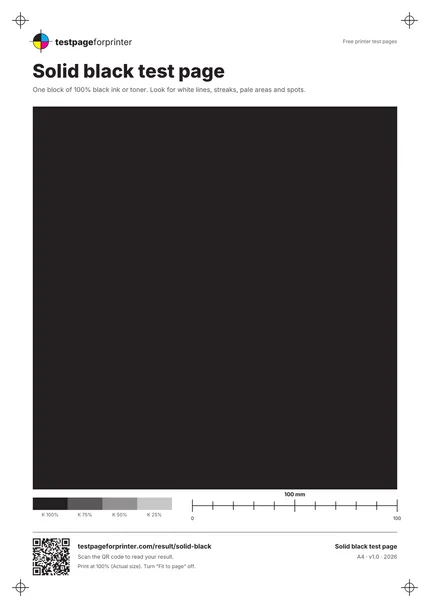
Print a black printer test page in Letter or A4 to check streaks, white lines, faded areas and uneven density. This sheet has one large solid black block and four gray steps.
Opens the PDF. Use Print or Share from there.
Download PDFPrint one copy first. This PDF does not measure ink or toner use.
Free PDF. No sign-up. Ready to print.
In the print dialog, choose Actual size or 100% and turn off Fit to page.In the print screen, choose Actual size or 100% (not Fit).

What each part checks
One large black block
A single block of 100% black that fills the page inside a narrow white margin, so it does not need borderless printing.
Nothing to hide behind
There is no text or pattern on the block, so any white line, pale patch or spot stands out against the black.
A strip of black tint steps
Four steps below the block at 100, 75, 50 and 25% black. Compare them with the block to judge how dark your printer prints black.
Letter and A4 PDFs
The block is vector black in a PDF for each paper size, so it prints as sharp, solid black rather than a scaled picture.
A QR code
Scan the code on the page to open a short guide that matches what you see to a likely cause.
A white margin
The margin around the block means the page prints on any printer without borderless printing.
How to read your print
- Even black.
- The block should look equally dark from edge to edge, with the same finish in every part.
- White lines or streaks.
- On an inkjet, thin white lines along the print direction often point to blocked black nozzles. On a laser, streaks that repeat in the same place on each page point to a part such as the drum or toner cartridge.
- Pale or gray areas.
- A block that is gray, or lighter on one side, can mean low ink or toner, a draft or economy mode, or uneven density.
- Spots and smears.
- Specks, smudges or black that rubs off on your fingers need their own checks. See the smudges page.
Keep the guide handy
The QR code on the printed sheet opens this page on your phone.
Print settings that matter
Print settings that matter
- Print at actual size (100%)Choose Actual size or 100% and turn off Fit to page. The page is made to print with a white margin all round.
- Use plain paper and turn draft modes offDraft, economy and toner-save modes print lighter on purpose, which makes black look gray. Set Standard quality and the paper type that matches your paper.
- Print one copy onlyPrint one page, look at it, and stop. A full black page uses much more ink or toner than a text page, so use it for diagnosing, not as a routine print.
Related sheets


Read the full guide
Download a black printer test page PDF
Choose the Letter black test page PDF for 8.5 x 11 inch paper or the A4 black test page PDF for 210 x 297 mm paper. Match the paper size in the print dialog, choose Actual size or 100%, and print one copy with draft or toner-save mode off.
If you want to check ordinary documents, use the black and white printer test page instead: it includes text, lines and grayscale steps. Use this solid black sheet when you specifically need to inspect a large dark area. The black block stops inside a white margin; it does not cover the paper edge to edge.
What a solid black page shows
This page prints one big block of pure black. Because there is no text or pattern to distract you, any fault in how the printer lays down black is easy to see. On an inkjet, blocked black nozzles leave thin white lines or streaks in the block. On a laser, you may see streaks, faded areas or uneven density across the block. Compare the block with the strip of 100, 75, 50 and 25% steps at the bottom of the page to judge how dark and even it is.
When to print it
Print it when black text looks pale or has gaps, when you see white lines in dark areas of a document, or after you replace a black cartridge or toner to confirm the new one prints evenly. It also helps when you want to compare draft and standard modes, or compare two kinds of paper, because the large block shows differences clearly.
A full black page uses much more ink or toner than a page of text, so print it only when you are diagnosing a problem, and print one copy. For a first check on an inkjet, the nozzle check shows each ink on its own small band and uses less. For a check of contrast, grayscale steps and text, use the black and white test page, which is a different sheet from this one.
How to read it
Hold the page in good light and tilt it. Look for white lines, lighter stripes, gray patches, spots and shiny or dull areas. Note whether a mark sits in the same place if you print a second page: marks that repeat in the same spot point to a part inside the printer, while marks that move around more often point to the paper or the print settings.
What to do about what you see
White lines on an inkjet: print the nozzle check, then follow how to clean a print head. Streaks or fading on a laser: see the laser printer test page for what to check, and follow the printer maker’s cleaning guidance. See streaks or lines and faded print for step-by-step help, and black ink not printing if black is missing altogether. If you have an inkjet, the inkjet printer test page lists the other sheets worth printing.
Good questions
Can I download the black printer test page as a PDF?
How much ink or toner does a solid black page use?
Why are there white lines in the black block?
Is this the same as the black and white test page?
Why does my black look gray?
Also useful
- Black and white test page
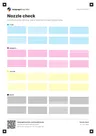
- Nozzle check
- Fix streaks or lines
- Fix faded print
- Fix smudges
- Black ink not printing
- Inkjet printer test page
- Laser printer test page
- All PDF downloads
- Color test page
- CMYK test page
- Alignment & margins
- Scale check sheet
- Photo test page
- Duplex front/back test
- Grayscale test page
- Ink saver test page
- Borderless test page
- Printer ruler test page
- Text clarity test page
- Grid test page
- Resolution test page