
Thermal printer test page: 4×6 label
Print one diagnostic label to check scale, clipped edges, text, density and sample barcode readability.
Fixed paper size: 4×6 inches
Exactly 101.6 × 152.4 mm. This is different from a 100 × 150 mm label. Letter/A4 preferences elsewhere on the site do not change this file.
Open 4×6 PDF to printDownload 4×6 test labelUse your PDF viewer's Print menu. Select 4×6 media and Actual size or 100%; turn off Fit to page. A compatible printer driver or app is required.
Read your test resultDigital checks verified the PDF size and sample codes. We have not yet tested a physical thermal printout.
Print, measure, then scan
- Load 4×6 label media and select the matching size in the driver and PDF viewer. Do not send this file to a 58 or 80 mm receipt printer.
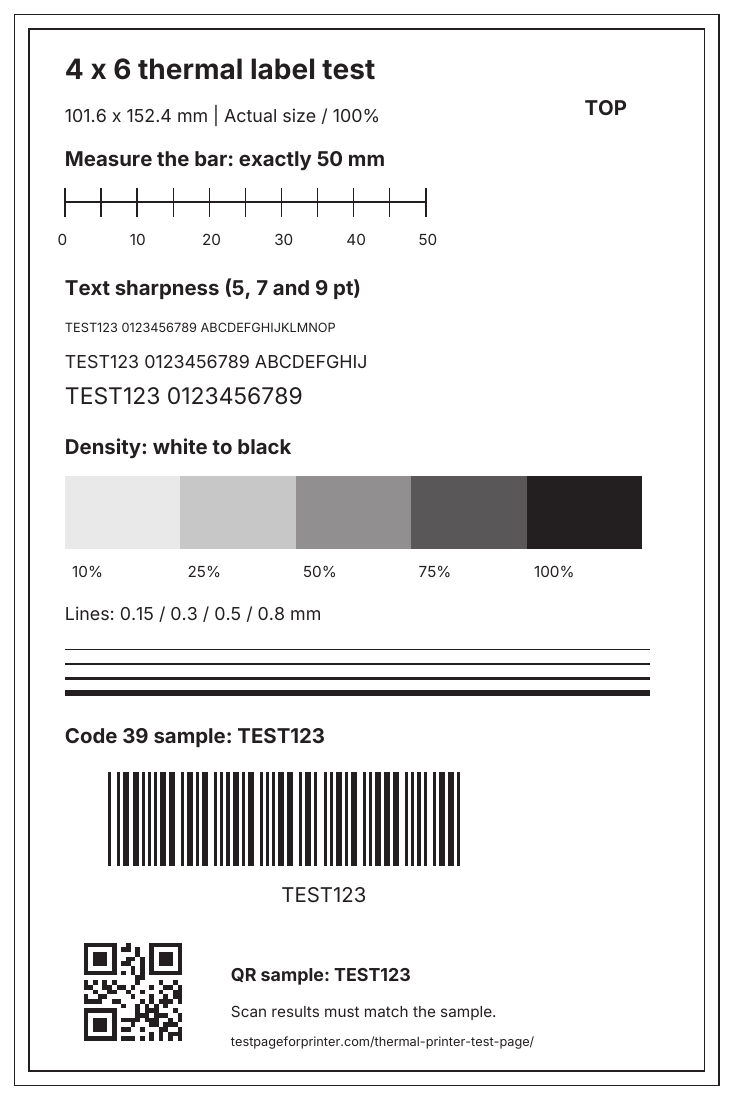
- Print at Actual size / 100%. Check the TOP mark and the frames 2 and 4 mm inside the label edge.
- Measure the ruler between its first and last ticks. It should be 50 mm. A shorter bar indicates scaling; check settings before changing printer calibration.
- Inspect the text, density patches and fine lines. Gaps, smears or consistently weak output deserve a printer-specific quality check.
- Scan the Code 39 and QR samples with readers that support those formats. Each must decode to TEST123. The Code 39 sample has no optional check digit. The QR sample contains text, not a website link.
What each result suggests
If your Zebra printer skips labels or starts printing in inconsistent positions, see our Zebra printer calibration guide. It separates the documented ZD421/ZD621 media routine from PDF scaling and darkness settings.
| What you see | Next check |
|---|---|
| Ruler shorter or longer than 50 mm | Check Actual size and the custom media dimensions. See print scaling fixes. |
| Frames clipped or content shifted | Check media size, orientation and driver margins. Run the manufacturer's media calibration if required. Edge frames are diagnostic; their absence alone does not prove a fault. |
| Weak, streaked or filled-in print | Confirm media type, then follow your model's instructions for darkness, speed and cleaning. Change one setting at a time. |
| Sample will not scan | Check scaling, sharpness, blank space around the code and scanner format settings. A scan failure can come from either reader or print. |
What this test does not prove
For narrow POS rolls rather than shipping labels, use the separate 58 or 80 mm receipt printer test.
This is a visual diagnostic and a sample decode check, not a shipping label, carrier acceptance test or GS1/ISO barcode quality grade. A code that scans on one reader may still fail elsewhere. Gray patches are comparison samples; thermal printer dithering may render them as dots rather than smooth gray.
It does not replace your printer's built-in self-test. For example, Zebra's ZD411d print-quality report compares labels at different darkness and speed settings. Use your own model's manual rather than assuming the same button sequence.
For barcode print-quality requirements, see GS1's quality checklist. For ordinary office printers, use our Letter and A4 test pages.