



How does your print look?

Compare your black and white test page with the options below to find the closest match.
Choose the closest match to your print

Your printer passed this check.

Share this result

Likely cause: a clogged black nozzle or dirty head (inkjet), or toner or drum wear (laser).

  1. 1.Print the nozzle check sheet and look at the black band.
  2. 2.On an inkjet, run one cleaning cycle and reprint. Try one more if needed, then stop.
  3. 3.On a laser printer, check the toner cartridge and drum for damage or low toner.
Fix streaks or lines

Share this result

Likely cause: low ink or toner, an economy mode, or a paper type setting that does not match.

  1. 1.Turn off toner save or draft mode and use normal or high quality.
  2. 2.Match the paper type setting to the paper you loaded.
  3. 3.Check ink or toner level and replace the cartridge if it is low.
Fix faded prints

Share this result

Can mean: a low quality setting, a head that needs alignment, or uneven paper feeding.

  1. 1.Reprint at a higher quality setting.
  2. 2.Run the printer’s head alignment once if your inkjet offers it.
  3. 3.On a laser printer, banding can point to the drum or paper feed, so try a different paper ream.
Fix banding

Share this result

Can mean: the driver is mixing colored ink to make gray, or one color channel is clogged.

  1. 1.Choose grayscale or black ink only in the print dialog, if your printer offers it.
  2. 2.Print the nozzle check sheet to rule out a clogged color nozzle.
Fix wrong colors

Share this result

Likely cause: wet ink on glossy or humid paper (inkjet), or toner that is not fusing properly (laser).

  1. 1.Let the page dry for a few minutes and try again on plain paper.
  2. 2.Check that the paper type setting matches the paper loaded.
  3. 3.If a laser print smears when you rub it, the fuser may need service.
Fix smudges

Share this result

Can mean: a low quality setting, a head that needs alignment, or a paper type that spreads ink. Very small text is hard for any printer.

  1. 1.Print at high quality on plain paper.
  2. 2.Run head alignment if you have an inkjet.
  3. 3.Compare with the 10 pt text. If that is sharp, your printer is working normally.
Fix misaligned print

Share this result

Pick the option that matches your print and the likely cause and next steps appear here.

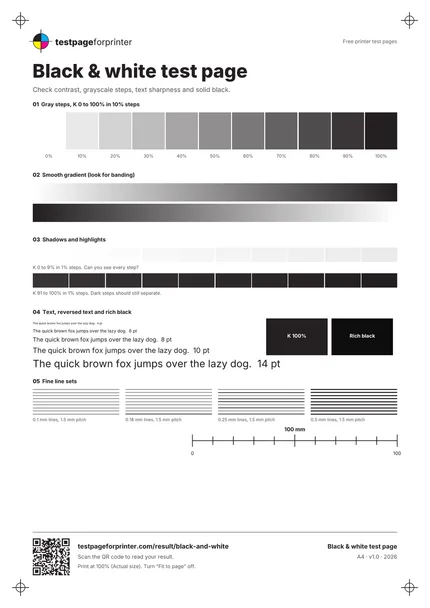
The Black & white test page
A4 / Letter
  1. 1.Gray steps from 0 to 100% in 10% steps
  2. 2.Smooth gradient (look for banding), shown in both directions
  3. 3.Shadows and highlights in 1% steps
  4. 4.Text, reversed text, solid black and rich black
  5. 5.Fine line sets
  • Look at the page under a bright, even light and tilt it, since glossy toner or ink can hide detail at some angles.
  • Print on plain white paper before judging results on photo or specialty paper.
  • The 0% to 5% steps and the 95% to 100% steps are hard for any printer, so do not worry if one or two merge.

Still not right?

Back to the black & white test page · All test pages