


How does your print look?

Compare your color test page with the options below. Pick the one that looks closest and we’ll show the likely cause and what to try first.

Choose the closest match to your print

Your printer passed this check.

Share this result

Likely cause: a partially clogged nozzle or a dirty print head (inkjet), or a worn drum or roller (laser).

  1. 1.Print the nozzle check sheet to see which color the lines belong to.
  2. 2.On an inkjet, run one head cleaning cycle from the printer menu or driver, then reprint this page.
  3. 3.If the lines remain, run one more cleaning cycle and stop there. Cleaning uses ink.
  4. 4.On a laser printer, lines usually point to a toner cartridge or drum issue, so check the cartridge instructions.
Fix streaks or lines

Share this result

Likely cause: an empty or clogged ink channel, or a color setting that is off.

  1. 1.Check ink or toner levels and make sure every cartridge is seated and not expired.
  2. 2.Print the nozzle check sheet to see whether that color prints at all.
  3. 3.On an inkjet, run one cleaning cycle and reprint. If it is still missing, try one more and then stop.
Fix missing color

Share this result

Can mean: color management is converting colors twice, or a color setting does not match the paper. Screens and printers also do not show the same range of colors.

  1. 1.In the print dialog, let only one place manage color: either the printer or the app, not both.
  2. 2.Choose the paper type that matches what is loaded.
  3. 3.Compare against the CMYK version of the sheet, since an RGB file is converted by the printer.
Fix wrong colors

Share this result

Likely cause: low ink or toner, a draft or economy mode, or the wrong paper type setting.

  1. 1.Turn off draft, economy or toner save mode and set the quality to normal or high.
  2. 2.Check that the paper type setting matches the paper you loaded.
  3. 3.Check ink or toner levels and replace a low cartridge if needed.
Fix faded prints

Share this result

Likely cause: a head that needs alignment or cleaning (inkjet), or paper feed variation. Low print quality settings can also show banding.

  1. 1.Raise the print quality setting and reprint.
  2. 2.Run the printer’s head alignment once, then reprint.
  3. 3.If bands persist, print the nozzle check sheet and look for gaps.
Fix banding

Share this result

Likely cause: the print was scaled, often by a “Fit to page” or “Shrink to fit” option.

  1. 1.Set scaling to 100% or “Actual size” and turn off Fit to page.
  2. 2.Reprint and measure again.
Check your scale

Share this result

Pick the option that matches your print and the likely cause and next steps appear here.

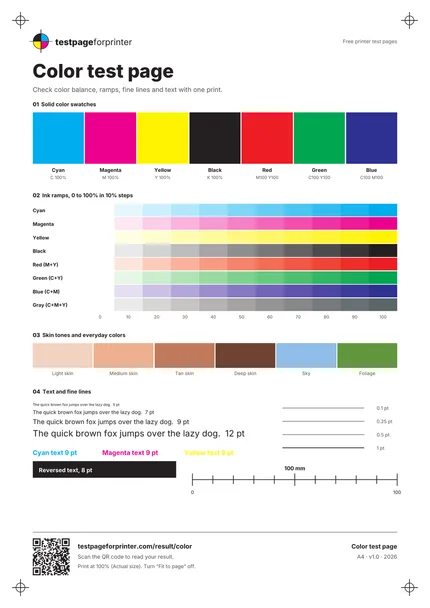
The Color test page
A4 / Letter
  1. 1.Solid color swatches: cyan, magenta, yellow, black, red, green, blue
  2. 2.Ink ramps from 0 to 100% in 10% steps
  3. 3.Skin tones and everyday colors (sky, foliage)
  4. 4.Text, colored text, reversed text and fine lines
  • View the page in daylight or bright, neutral light. Warm bulbs make colors look different.
  • Print on plain white paper first, since colored or coated paper changes how swatches look.
  • Look at swatches from arm’s length, then up close with the small text.

Still not right?

Back to the color test page · All test pages