


How does your print look?

Compare your ink saver test page with the options below to see whether what you see is normal for a saver mode or a printer problem.

Choose the closest match to your print

Your printer passed this check.

Share this result

This is a normal effect of saver modes. They lighten thin strokes first.

  1. 1.Use Standard quality for documents with small text, such as tables and fine print.
  2. 2.Use draft only for text at 10 pt or larger.
  3. 3.If Standard is also pale, check ink or toner levels.
Fix faded print

Share this result

Economy modes drop the lightest tints. This is normal.

  1. 1.Use darker grays, at least 60% black, for anything you need to read in draft mode.
  2. 2.Print important pages in Standard mode.

Share this result

Likely cause: a clogged nozzle or dirty print head. This is not a saver-mode effect.

  1. 1.Print the nozzle check to see which ink is affected.
  2. 2.On an inkjet, run one cleaning cycle and reprint.
  3. 3.If lines remain after a second cycle, stop and see the fix page.
Fix streaks or lines

Share this result

Pick the option that matches your print and the likely cause and next steps appear here.

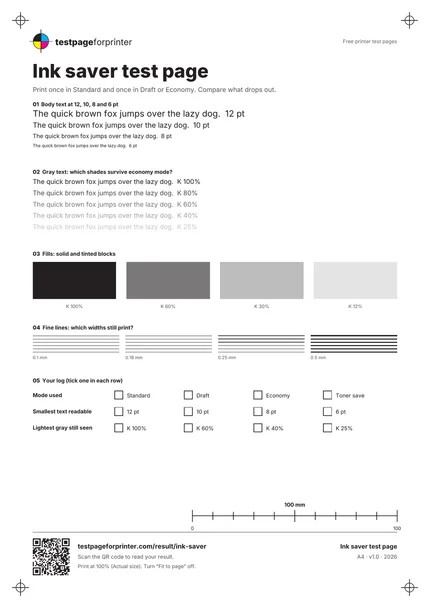
The Ink saver test page
A4 / Letter
  1. 1.Body text at 12, 10, 8 and 6 pt
  2. 2.Gray text at five shades
  3. 3.Solid and tinted blocks
  4. 4.Fine line sets
  5. 5.A log to tick
  • Print the same page in Standard and in your saver mode, on the same paper, and compare them side by side.
  • Look at both pages in the same light.
  • Tick the log on each sheet so you remember which mode you used.

Still not right?

Back to the ink saver test page · All test pages